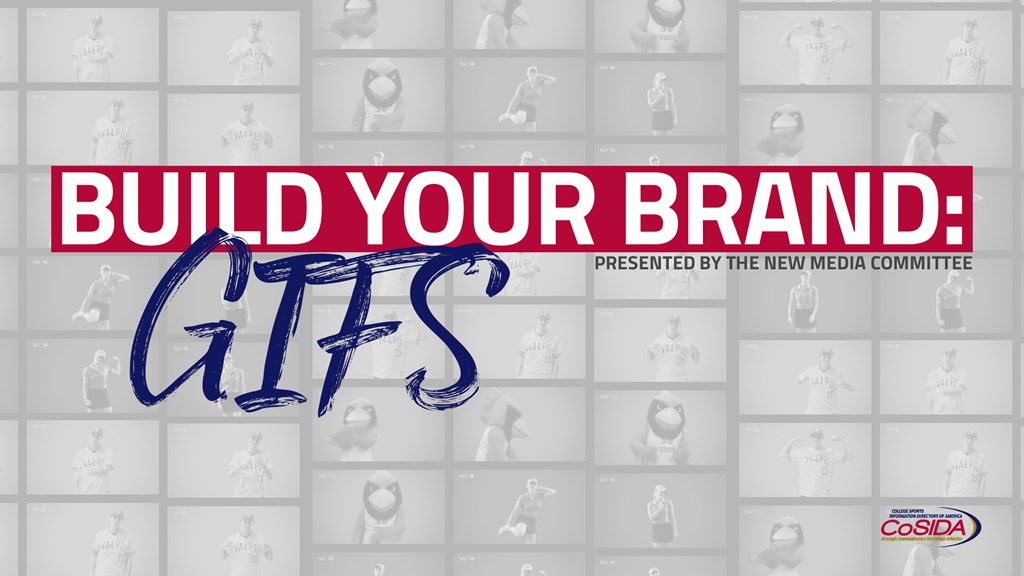
Build Your Brand: GIFs
College Sports Information Directors of America


by Katie Mucci – Missouri Valley Conference, Assistant Commissioner for New Media and Technology
Chair, CoSIDA New Media Committee, kmucci@mvc.org
While I think everyone can appreciate a well-placed GIF from The Office or Parks and Rec, sometimes it’s better to stay a little bit more #onbrand with your social strategy. Though you might not have a staff of 10, five, or maybe even two, getting your own unique content isn’t out of your reach.
Through this piece, I’ll go through the steps taken at the Missouri Valley Conference to go from zero to 700 (literally), beginning with the idea behind it and ending with how to make them show up on social.
The Idea
I love GIFs. I really do. However, I don’t love using GIFs that have little to no relevancy to my job. I smile every time I see Carlton dancing and I love the blinking guy, and use these often on my personal social media, but in my mind pop culture images don’t have quite the same effect as something that sticks with your brand identity. Obviously, like everything in life, there are exceptions to this rule, but we’re not focusing on that here.
My initial idea came from seeing content on various professional team accounts with players holding up emojis or giving an array of reactions that could be used in-game. In my head, though the difference in resources is basically the equivalent of the prince and the pauper, I could figure it out.
I started Googling shortly after, trying to figure out how difficult it was to remove a green screen, how much a green screen costs, what kind of lighting I would need, and how to get these GIFs I’d be spending all this time making into the hands of our target audience: teams, student-athletes and fans.
Getting Started
As I mentioned one of the first steps was figuring out how to take GIFs I would be making and get them into a place that’s accessible for our audience.
The website that feeds content into that handy GIF button on Twitter and Facebook is Giphy. You can request a brand channel on Giphy, which can then serve as a hub for all of your content. When I originally did this, it took less than a day to get approved.
Now you’ve got a home for the content, but you still need to actually create it.
When I started this idea, the only equipment I had on hand was a Nikon D5100 camera, a couple lenses to choose from and a tripod. If you don’t have the budget to go past that, don’t worry. You can still make it work.
The first item on my shopping list was lighting, which is probably the most important. The lighting I bought can be found in this bundle. It was right around $100 for the whole lot, so it’s a cost-effective option. The green screen included in that bundle is not one that we’ve chosen to use, because of its size (only 5x10) and the poor fabric quality. Separately, I purchased this much larger green screen which has worked out wonderfully. It also comes with black and white fabric if you would rather just keep a neutral background (and cut down on editing time).
That’s all the equipment you need, but if you do decide to go the green screen route you will need software to remove that. I used Adobe After Effects CC as part of my Creative Cloud subscription.
Set-Up
On the day of the shoot, you’ll need your lighting, the green screen you’ve chosen and a decent sized space to shoot in.
When setting up your green screen, make sure it is tall enough and wide enough for any movements that your student-athletes might make. You’ll also want to steam the backdrop to get out any wrinkles. Those will make it harder to edit in post-production. Lastly, the green screen needs to be well lit. Out of the four stand up lights I had, I would point two at the green screen and put two in front of the subject. A good reference for the best way to light can be found in this video from B&H.
Now that you’ve got the green screen set up and lit, you can start the shoot!
Post-Production
As I said before, I edited my videos first in After Effects to remove the green screen. I replaced it with a background that included the school’s primary color and logo, along with the MVC logo.
The background was made in Photoshop and then imported it into After Effects.
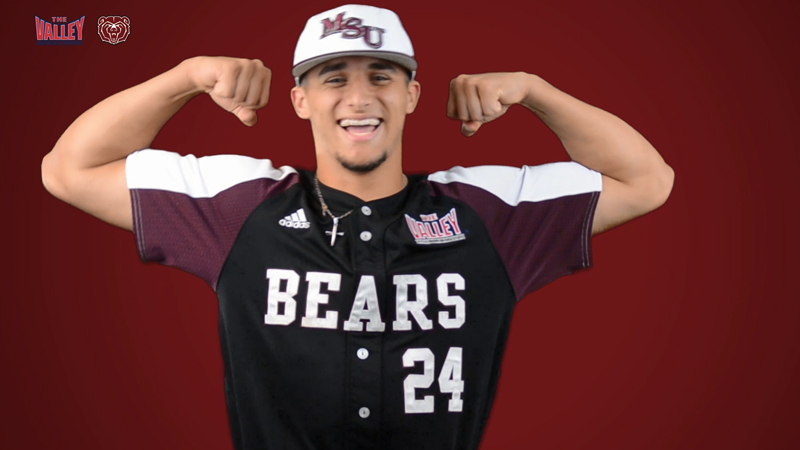
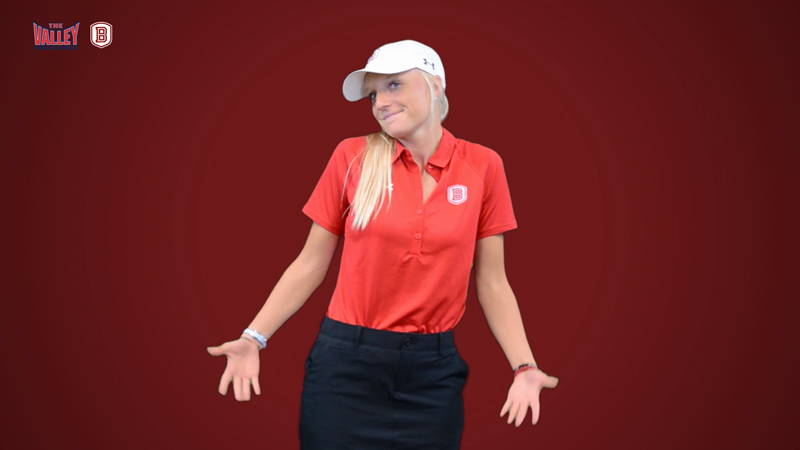
For a good tutorial on how to remove a green screen, see this one by Jason Levine. No matter what, you’ll have to adjust the settings to fit your particular video, but the steps he goes through are relevant for everyone.
Once you’ve got the green screen removed, you’ll put the background on a layer below the video within your composition and you’re done here!
During my shoot, I kept a running camera throughout each student-athlete, so once I finished in After Effects, I exported the result and then finished my work in Premiere Pro.
Within Premiere, I imported each student-athletes file, then clipped the video into smaller clips for the final GIFs. I like to keep mine a minimum of two seconds long, so if they were a little bit shorter I would adjust the speed. After each clip, I’d add them to the Adobe Media Encoder and do a mass export at the end.
You do not have to change any settings when exporting, you just need a normal video file.
Uploading to GIPHY
Once you’ve got all of your video files, you’ll log in to your GIPHY brand channel and hit upload in the top right corner.
I wanted my GIFs to be searchable by school within the conference, so I added Tags that were unique to each institution but would not be common enough to be used by other users. For example, Bradley University is one of the schools in the MVC, so their GIFs are all searchable on Twitter and Facebook by using the phrase “MVCbu”.
If you’re at a school, and wanted to separate by sport, you could do “BUmsoc” or “BUvb”. Make sure to search these within Giphy to see if it’s a popular term as well.
Once you’ve added your tags and uploaded these, they should be available for use immediately! Happy GIF-ing ??
To see an example of a Brand Channel and how the GIFs we made look, you van visit our GIPHY channel at http://www.giphy.com/mvcsports
Related News
- On-demand webinar - Finding balance in the always-on world of university sports communications
May 27, 2026 - On-demand replays of the 2026 CSC U Summit now available
April 10, 2026 - 2026 CSC U Summit free registration now open; calling all students and young professionals
March 25, 2026
Calendar
Important Dates
- 06/23/26 / 11:59 P.M.
M/W At-Large Academic All-America National Ballot Voting Deadline (NCAA, NAIA, College Division) - 06/30/26 / 11:59 P.M.
M/W Track & Field/Cross Country Academic All-America National Ballot Voting Deadline (NCAA, NAIA) - 07/07/26 / 12:00 P.M.
W At-Large Academic All-America Announced (NCAA, NAIA, College Division) - 07/08/26 / 12:00 P.M.
M At-Large Academic All-America Announced (NCAA, NAIA, College Division) - 07/14/26 / 12:00 P.M.
M Track & Field/Cross Country Academic All-America Announced (NCAA, NAIA) - 06/07/26 / All Day
2026 CSC Unite Convention in Las Vegas - 06/08/26 / All Day
2026 CSC Unite Convention in Las Vegas - 06/09/26 / All Day
2026 CSC Unite Convention in Las Vegas - 06/09/26 / 11:59 P.M.
Baseball Academic All-America National Ballot Voting Deadline (NCAA, NAIA, College Division) - 06/10/26 / All Day
2026 CSC Unite Convention in Las Vegas - 06/16/26 / 12:00 P.M.
Softball Academic All-America Announced (NCAA, NAIA) - 06/16/26 / 12:00 P.M.
M/W At-Large Academic All-District Released; National Voting Begins (NCAA, NAIA, College Division) - 06/16/26 / 11:59 P.M.
M/W Track & Field/Cross Country Academic All-America Nomination Deadline (NCAA, NAIA) - 06/23/26 / 12:00 P.M.
M/W Track & Field/Cross Country Academic All-District Released; National Voting Begins (NCAA, NAIA) - 06/23/26 / 12:00 P.M.
Baseball Academic All-America Announced (NCAA, NAIA) - 06/23/26 / 11:59 P.M.
M/W At-Large Academic All-America National Ballot Voting Deadline (NCAA, NAIA, College Division) - 06/30/26 / 11:59 P.M.
M/W Track & Field/Cross Country Academic All-America National Ballot Voting Deadline (NCAA, NAIA) - 07/07/26 / 12:00 P.M.
W At-Large Academic All-America Announced (NCAA, NAIA, College Division) - 07/08/26 / 12:00 P.M.
M At-Large Academic All-America Announced (NCAA, NAIA, College Division) - 07/14/26 / 12:00 P.M.
M Track & Field/Cross Country Academic All-America Announced (NCAA, NAIA) - 06/07/26 / All Day
2026 CSC Unite Convention in Las Vegas - 06/08/26 / All Day
2026 CSC Unite Convention in Las Vegas - 06/09/26 / All Day
2026 CSC Unite Convention in Las Vegas - 06/09/26 / 11:59 P.M.
Baseball Academic All-America National Ballot Voting Deadline (NCAA, NAIA) - 06/10/26 / All Day
2026 CSC Unite Convention in Las Vegas
PreviousNext